How to switch from StatCounter to Countnest in 10 minutes
- Edit access to your site's <head> (or WordPress admin rights)
- About 10 minutes now, plus a week of side-by-side running if you want to compare numbers
What switching involves
Switching analytics tools means three small jobs: add the new script, check it counts, and remove the old one. Two definitions help:
- StatCounter is a long-running hosted web analytics and hit-counter service (its site says © 1999–2026) with a free Basic plan, paid Premium and Premium Plus plans, real-time visitor feeds and optional session replay.
- Countnest is a paid, EU-hosted web analytics service from IDCPH ApS in Copenhagen. It counts visits without saving IP addresses and without storing anything on visitors' devices, and adds AI traffic by assistant and Google and Bing search data.
- Session means one visit. StatCounter says each website visit counts as a session, and Countnest's plans are sized in sessions too, so the plan sizes are easy to compare.
StatCounter today, in short
On 17 November 2026, StatCounter's pricing page listed:
| Plan | Price (as shown, monthly) | Retention | Notable features |
|---|---|---|---|
| Basic | Free forever, 5,000 sessions a month | 14 days | Traffic charts, dashboard, real-time visitor feeds, basic email reports |
| Premium | From €9/month for 20,000 sessions | 3 years | Adds landing page analysis, conversion tracking, paid traffic analysis, visitor labels and alerts, CSV export, API |
| Premium Plus | From €19/month for 20,000 sessions | 5 years | Adds heatmaps, Google Ads integration, block and unblock IPs, UTM campaign tracking |
| Session replay | Add-on from €9/month for 1,000 recordings | Video-like playback of visits |
StatCounter also offers a 30-day free trial with no credit card, during which it says you can try all its features, and 10% off with yearly billing. Prices were shown in euros from our connection. For the full comparison, read Countnest vs StatCounter; for other options, see StatCounter alternatives: 7 options compared, free and paid.
What you can bring over, and what you can't
- Your history stays in StatCounter. Countnest has no importer for StatCounter data (or any other tool's), so Countnest's reports start on the day you add the script. That is the main reason to run both for a while.
- CSV export is listed on paid plans. StatCounter's pricing page lists "Export Reports as CSV" under Premium (and so Premium Plus), not under the free Basic plan. Its features page says you can export data from any report; an older FAQ entry on its site says summary stats can be exported as Excel or CSV and that more reports would follow. Check which reports show an export option in your own account.
- The API is paid too. StatCounter says its API is only available to members with a paid upgrade. It also offers an MCP server so AI assistants can query your stats.
- On the free plan, history is short anyway. Basic keeps 14 days of data. If you are within StatCounter's 30-day trial, that is the moment to export what you want to keep.
- What you rebuild in minutes: goals, UTM-tagged campaigns (your tagged links keep working), teammates and a weekly email report.
- What has no Countnest equivalent: per-visitor activity feeds, visitor labels and alerts on individual visitors, session replay, heatmaps and IP blocking. Countnest shows totals and trends, not individual people. If you rely on those, StatCounter may still be the better fit.
Part 1: prepare in StatCounter (2 minutes)
Step 1: Write down what you actually use
Log in to StatCounter and list the reports you open every week, for example Summary Stats, Popular Pages, traffic sources, Visitor Paths or your conversion goals. Also note any UTM campaigns, email reports and extra users. The table further down shows where each one lives in Countnest.
Step 2: Export the reports you want to keep
If your plan includes export (StatCounter lists CSV export on Premium and Premium Plus), open each report you want to keep and export it for the last full months. On the free Basic plan, save the summary charts another way, for example as screenshots. Do not remove the StatCounter code or close the account yet.
Part 2: add Countnest next to StatCounter (5 minutes)
Step 3: Create your Countnest account
Open the signup page. It is titled Start your 30-day free trial. Fill in Company or site name, Email and Password (at least 8 characters), tick the box to agree to the Terms and the Data Processing Agreement, and click Create account. No card is asked for, and the trial includes Growth plan features.
Step 4: Add your site
You land on a short setup with three steps: 1. Add your site, 2. Paste the snippet and 3. See your first visit. In the Add a site card, type a Name and your Domain (use
*.example.comto include subdomains), then click Add site.Step 5: Paste the snippet into your site's head
Countnest now shows a card called Paste this in the <head> of every page with your personal snippet. It looks like this:
<script defer src="https://countnest.com/c.js" data-site="YOUR-SITE-ID"></script>StatCounter's install guide places its code just before
</body>; the Countnest line goes in<head>. Both can sit on the same page while you compare. If your site runs on WordPress, Next.js, Cloudflare or another server, click Full install (WordPress, Next.js, Cloudflare…). On the Install Countnest page, pick your platform under What is your site built on?. For WordPress, click Download WordPress plugin (.zip), upload it under Plugins → Add New → Upload Plugin, activate it, open Settings → Countnest, paste your Site ID and Ingest key and click Save. Shopify, Wix, Squarespace and plain HTML sites use the script tag only. More in the install docs.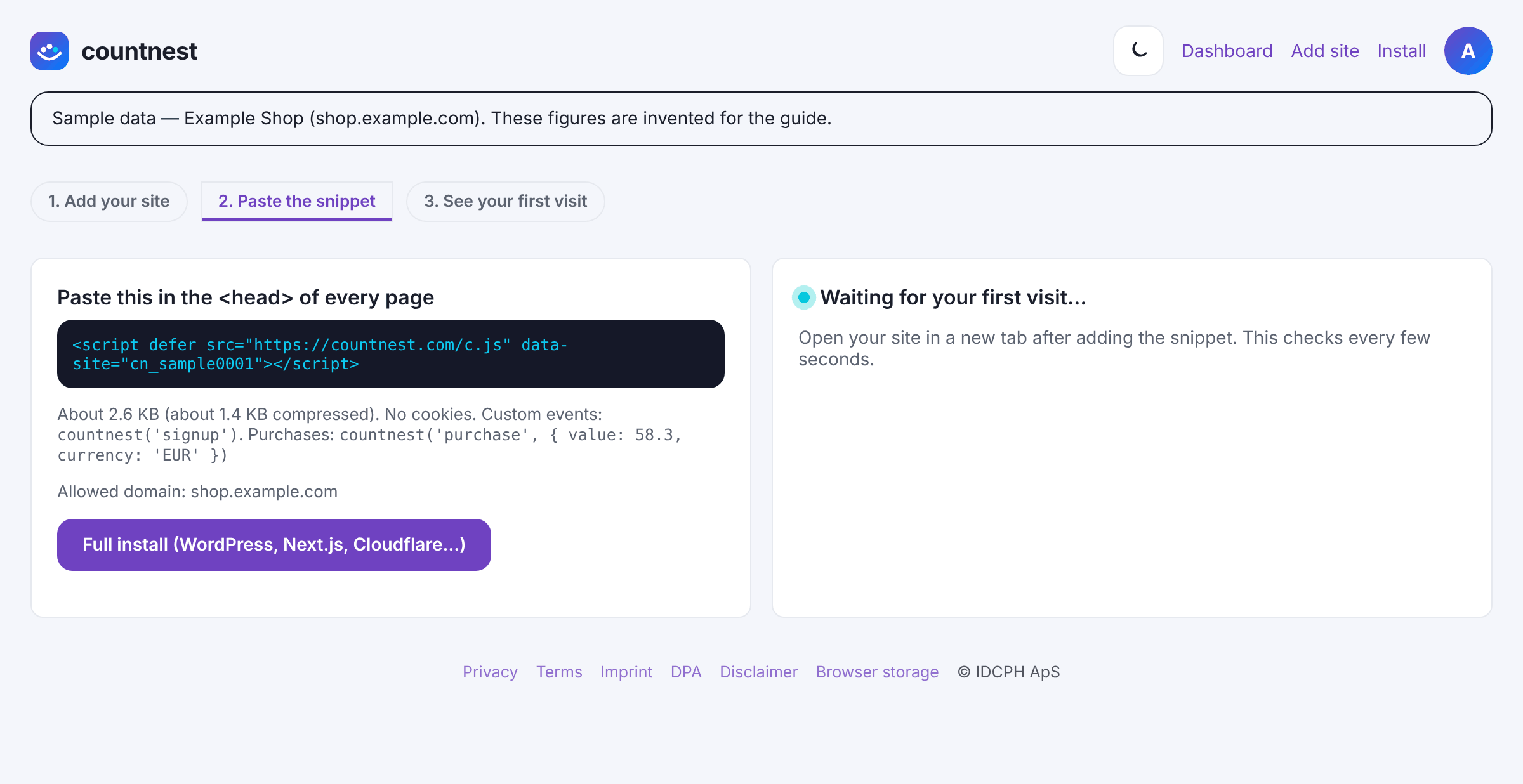
Sample data in the Countnest dashboard (light theme). Step 6: Check that the first visit arrives
Open your site in a new browser tab. Back in Countnest, the card Waiting for your first visit… checks every few seconds and changes to ✅ First visit received. Click Open dashboard. You can also run Check installation on the Install page at any time. One tip: Countnest does not count browsers that send Do Not Track or Global Privacy Control, so if your test visit does not show up, try another browser. The same setting is an easy way to keep your own visits out of your stats.
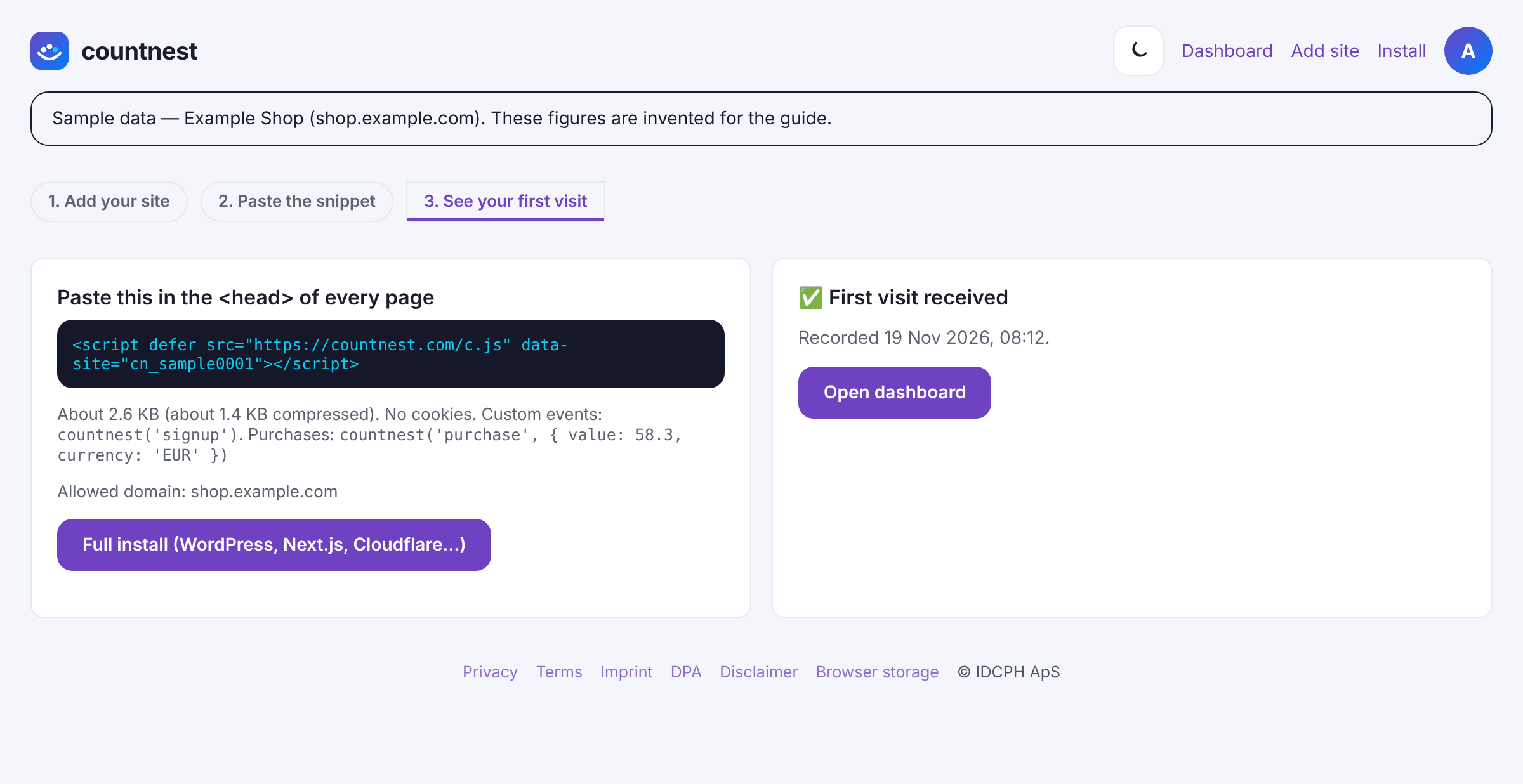
Sample data in the Countnest dashboard (light theme).


Part 3: run both for a week (1 minute now)
Step 7: Mark the switch date
On the Overview tab, under the Visitors chart, click + Add note, keep today's date, type something like
Added Countnest next to StatCounter, and click Save note. The note stays on the chart, so later you can see exactly where Countnest's history begins.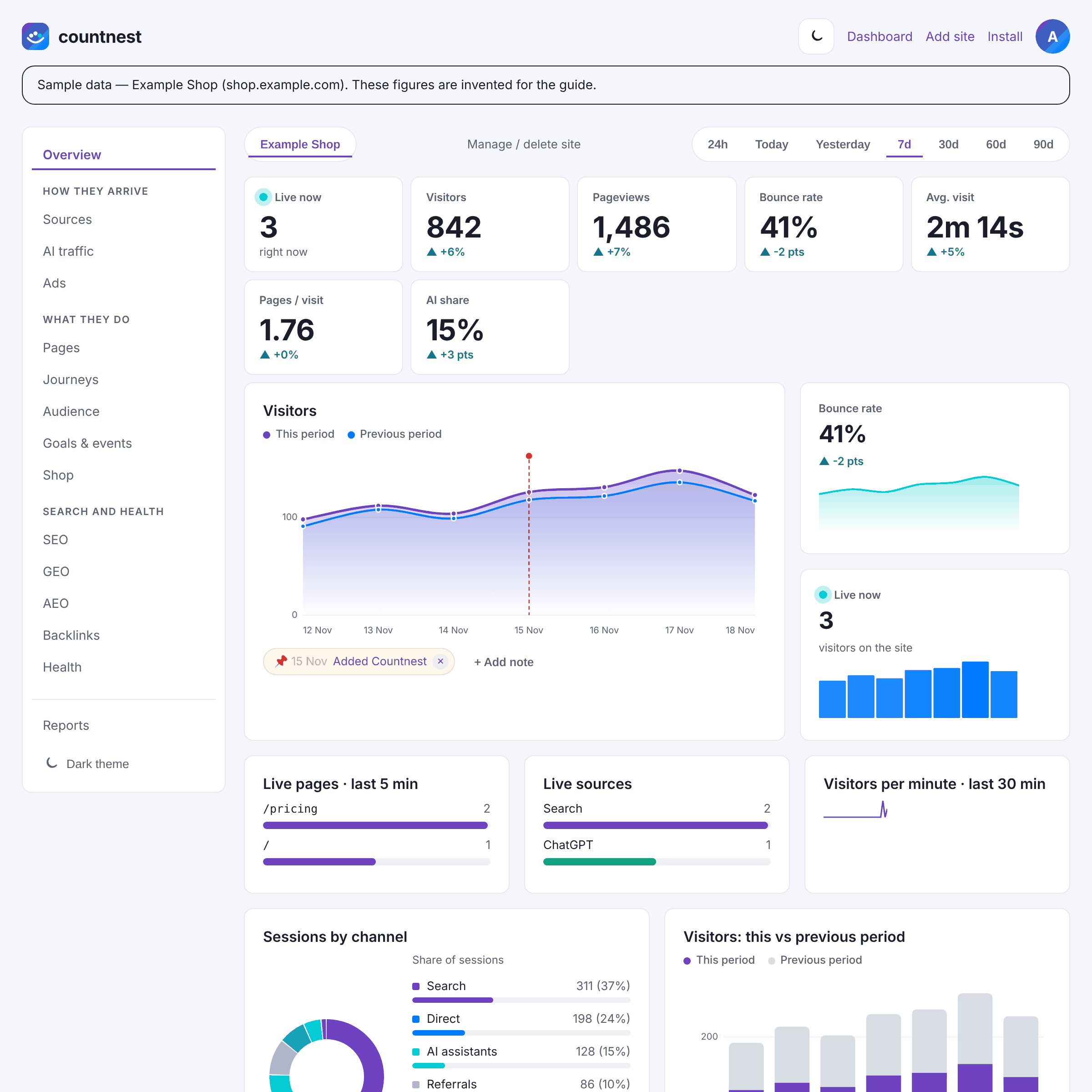
Sample data in the Countnest dashboard (light theme). Step 8: Compare trends, not exact numbers
After a week, pick 7d in Countnest and compare it with the same week in StatCounter's Summary Stats. Look for the same shape of the curve and the same top pages and sources. Some differences are normal: StatCounter's FAQ says visitors with cookies disabled are counted as a unique visitor on each page load; Countnest groups visits from the same browser and network within one day and does not count Do Not Track or Global Privacy Control visits; and ad blockers can block either script. StatCounter says it removes bots and spam from its stats, and Countnest drops known bots too.
Sample data in the Countnest dashboard (light theme).

Part 4: remove StatCounter (2 minutes)
Step 9: Remove the StatCounter code
Find the StatCounter block in your theme, footer template or page code. StatCounter's install guide shows it starting with a
<!-- StatCounter Code -->comment just before</body>; it sets variables such assc_projectand loads a script from statcounter.com, often with a<noscript>image as well. Delete the whole block, on every page or once in a shared template. On WordPress, if you used the official StatCounter plugin, deactivate and delete it under Plugins. Also check your tag manager and any "custom code" setting in your site builder, then clear your site's cache.Step 10: Check that StatCounter is gone
Run your homepage through the free third-party tracker checker. It lists the analytics scripts and other third-party hosts a page loads: Countnest should be there and StatCounter should not. Scripts added later by a tag manager or after a consent choice cannot be seen by the scan, so also open your browser's developer tools, go to the Network tab, reload the page and filter for
statcounter.Step 11: Decide what to do with the StatCounter account
You can simply leave the account: StatCounter says that after its trial you can stay on the free Basic plan. If you no longer need it, StatCounter's FAQ says to close the account with its Close Account Form. Export anything you want to keep first, and if you paid for an upgrade, check your StatCounter billing so you are not charged for a plan you no longer use.
Where to find your StatCounter reports in Countnest
StatCounter report names below come from StatCounter's own pricing, features and support pages. Countnest names are the labels you see in the dashboard.
| In StatCounter | In Countnest | Good to know |
|---|---|---|
| Summary Stats (page views, sessions, visitors, new visitors) | Overview: Visitors, Pageviews, Bounce rate, Avg. visit, Pages / visit and AI share, plus the Visitors chart against the previous period | No new-vs-returning split, because Countnest does not recognise visitors from one day to the next |
| Popular Pages, entry and exit pages | Pages: Top pages, Entry pages, Exit pages, Engaged time and scroll per page, Scroll depth | Also 404 and broken pages |
| Traffic sources and referring websites | Sources: Channels, Referrers (click to see exact pages), Search engines, Social networks, New referrers, Lost referrers | |
| Google keyword data | SEO: Connect Google Search Console and Connect Bing Webmaster Tools | Search data from both engines side by side |
| Recent Activity: Visitor Activity, Page View Activity | Overview: Live now, Live pages · last 5 min, Live sources, Visitors per minute · last 30 min | Totals, not a feed of individual visitors |
| Visitor Paths | Journeys: Visit journeys (what led here, what happened next) and Most common paths | Grouped paths, not one visitor's path |
| Exit Links and downloads | Goals & events: Outbound link clicks, File downloads | Recorded automatically, no extra code |
| Conversion tracking | Goals & events: Goals (click Add goal: event name, page path, scroll depth or form submission) and Funnels | Conversion rate per source and per AI assistant |
| UTM campaign tracking | Sources: UTM campaigns | Your existing tagged links keep working |
| Paid traffic analysis, Google Ads integration | Ads: Campaigns, Import ad costs | No click-fraud or IP blocking tools |
| Visitor Locations | Audience: Visitors by country, Countries, Cities | Rough location only, never an IP address |
| System Stats | Audience: Devices, Browsers, Operating systems, Screen sizes, Languages | |
| Email reports | Weekly email digest every Monday (Account → Weekly email reports) | |
| Export Reports as CSV | Reports: Export CSV (Top pages, Referrers, Countries, UTM campaigns, Visitors per day, Events) | |
| API and MCP server | Reports: Stats API and MCP | Growth and Agency plans, and during the trial |
| Multiple users | Account: invite teammates with Send invite | |
| Visitor labels and alerts | Reports: Spike and drop alerts, Alerts and webhooks | Alerts about traffic, not about individual people |
| Session replay, heatmaps | Not offered | |
| (no dedicated report found) | AI traffic: visits from 17 AI assistants, AI landing pages, AI vs Search: visit quality | See how to track AI traffic |
How Countnest counts visits
This is the main difference you will notice after a switch. StatCounter's privacy policy says it records the visitor's IP address and sends a cookie to tell first-time from returning visitors. Countnest works differently:
- It never saves IP addresses. The IP address is read in memory to form a one-way code that changes daily, and is then discarded.
- Its script does not set cookies or use local storage, and stores nothing on visitors' devices.
- On the same day, visits from the same browser and network can still be grouped, so the records are pseudonymous rather than strictly anonymous.
- Browsers that send Do Not Track or Global Privacy Control are not counted at all.
- Data is stored in the EU (Frankfurt).
More detail is on our privacy explainer.
A note on consent
Whether you need a consent banner depends on your country and on what a tool does, for example whether it stores or reads information on the device, stores IP addresses or records sessions. No tool can promise that you never need consent, and switching tools does not settle that question on its own. This is general information, not legal advice. Official sources: the ePrivacy Directive (2002/58/EC), the GDPR (2016/679) and the EDPB Guidelines 2/2023 on the technical scope of Art. 5(3) ePrivacy. Our overviews: Do I need a consent banner for website analytics? and consent rules in Europe, country by country.
What it costs after the trial
Countnest has no free plan. After the 30-day trial you choose Starter at $14 a month (1 site, 20,000 sessions), Growth at $29 (5 sites, 100,000 sessions) or Agency at $79 (25 sites, 500,000 sessions), VAT included, with about 2 months free on yearly billing. If you do nothing, the trial simply ends. See pricing. StatCounter bills in euros as shown above, so compare the final totals at checkout rather than the face values.
Free tools that help with the switch
- Third-party tracker checker: confirm which analytics scripts a page still loads.
- UTM link builder: tag new campaign links consistently from day one.
- AI readiness checker: see which AI and search crawlers your robots.txt allows.
How we checked
On 17 November 2026 we read StatCounter's pricing, features, API, install guide, visitor paths, live update, ignore-your-own-visits and FAQ pages, its privacy policy and its WordPress plugin page (all listed under Sources). The Countnest steps follow the labels in the Countnest app on the same day. We did not test StatCounter's export inside a paid account, so we describe it as StatCounter does. StatCounter / Statcounter is a trademark of its owner. Countnest is not affiliated with or endorsed by StatCounter. If something here is out of date, tell us at support@countnest.com and we will fix it.
Questions and answers
Can I import my StatCounter history into Countnest?
No. Countnest has no importer for StatCounter data, so its reports start on the day you add the script. Export what you want to keep from StatCounter first: on 17 November 2026 StatCounter listed CSV export on its paid Premium plans, and the free Basic plan keeps 14 days of data.
Can StatCounter and Countnest run on the same site?
Yes. They use separate scripts, so you can run both side by side. We suggest about a week, then compare trends rather than exact numbers before you remove the StatCounter code.
Why are my numbers different in the two tools?
Every tool counts a little differently. StatCounter's FAQ says visitors with cookies disabled count as a unique visitor on each page load. Countnest groups visits from the same browser and network within a day and does not count Do Not Track or Global Privacy Control visits. Ad blockers can block either script.
Is Countnest a free StatCounter alternative?
No. Countnest has a 30-day free trial with no card, then plans from $14 a month (Starter), $29 (Growth) and $79 (Agency), VAT included. If you need a free tool, StatCounter's Basic plan is free for 5,000 sessions a month, and our roundup of StatCounter alternatives lists other free options.
Does Countnest show individual visitors like StatCounter?
No. Countnest shows totals and trends, such as live pages, sources and common paths, not a feed of individual visitors. It has no session replay, heatmaps or visitor labels.
How long does the switch take?
About 10 minutes of hands-on work: 2 minutes to prepare, 5 to add Countnest, 1 to mark the date and 2 to remove the StatCounter code. The side-by-side week runs by itself.
30-day free trial, no card required. Then from $14 a month. Cancel anytime.
Start free for 30 daysSources
- StatCounter pricing (Basic, Premium, Premium Plus, CSV export, API, session replay, 30-day trial; checked 17 November 2026)
- StatCounter features (reports dashboard, popular pages, exit links, recent activity, data export)
- StatCounter FAQ: Is it possible to export the stats as a CSV or Excel file?
- StatCounter API and MCP server (API for paid upgrades only)
- StatCounter Default Installation Guide (code before the closing body tag)
- StatCounter: Analyze Your First Visitors (Summary Stats, Recent Activity)
- StatCounter: Explore Visitor Paths
- StatCounter FAQ: If a visitor does not have cookies enabled are they still tracked?
- StatCounter: Statcounter vs Google Analytics (bots and spam removed)
- StatCounter legal notices and privacy policy (IP address, first-time vs returning visitor cookie)
- StatCounter FAQ: How do I close my account?
- WordPress.org: Official StatCounter plugin
- Countnest pricing
- Countnest install docs