How to track AI traffic in GA4 and Countnest, step by step
- Editor access to your GA4 property
- Access to your site's <head> or tag manager to add one script
Part 1: an AI assistants channel in GA4
Step 1: Open Channel groups
In GA4, go to Admin, then Data display, then Channel groups. You need the Editor role or above on the property.
Step 2: Create a new channel group
Click Create new channel group. Your first custom group starts as a copy of the default group, so every existing channel keeps working. Name it, for example,
Channels with AI. A standard property can have 2 custom groups next to the default one.Step 3: Add an AI assistants channel
Click Add new channel, name it
AI assistants, and add a condition: Source matches regex, then paste the pattern below. It matches 16 hostnames of 14 assistants, with or without a subdomain such aswww., and nothing else:you.comwill not matchbayou.com.^(.*\.)?(chatgpt\.com|chat\.openai\.com|perplexity\.ai|gemini\.google\.com|claude\.ai|copilot\.microsoft\.com|copilot\.cloud\.microsoft|deepseek\.com|grok\.com|meta\.ai|chat\.mistral\.ai|you\.com|poe\.com|phind\.com|duck\.ai|chat\.qwen\.ai)$If you want to keep everything GA4 itself already classifies as AI, add a second condition joined with OR: Medium exactly matches
ai-assistant. That is the medium Google sets for its built-in AI Assistant channel. Click Save channel.Step 4: Put the channel in the right place
Click Reorder and drag
AI assistantsabove Referral and above the built-in AI Assistant channel. Google puts each visit into the first channel it matches, in the order listed; below Referral, your channel would catch nothing. Click Apply, then Save group.Step 5: Read the channel in Traffic acquisition
Open Reports, then Acquisition, then Traffic acquisition. In the table's dimension picker, choose your new channel group. Google says custom channel groups can be applied to reports retroactively, so earlier months fill in too. Add Landing page + query string as a secondary dimension to see which pages each source sends people to.
Step 6: Check the result against your source list
Switch the dimension to Session source / medium and search for
chatgpt,perplexity,claude,geminiandcopilot. Every row you find should now sit inAI assistants. If an assistant you see is missing, add its hostname to the pattern.
Part 2: the same visits in Countnest
Step 7: Start a trial and add your site
Start a 30-day free trial (no card needed) and add your website.
Step 8: Install the script
Paste the one-line script into your site's
<head>, next to GA4 if you keep it:<script defer src="https://countnest.com/c.js" data-site="YOUR-SITE-ID"></script>It is about 2.6 KB (about 1.4 KB compressed) and loads with
defer. On WordPress, Webflow or Next.js, follow the install docs. Visit your site once and watch it arrive under Live now on the Overview tab.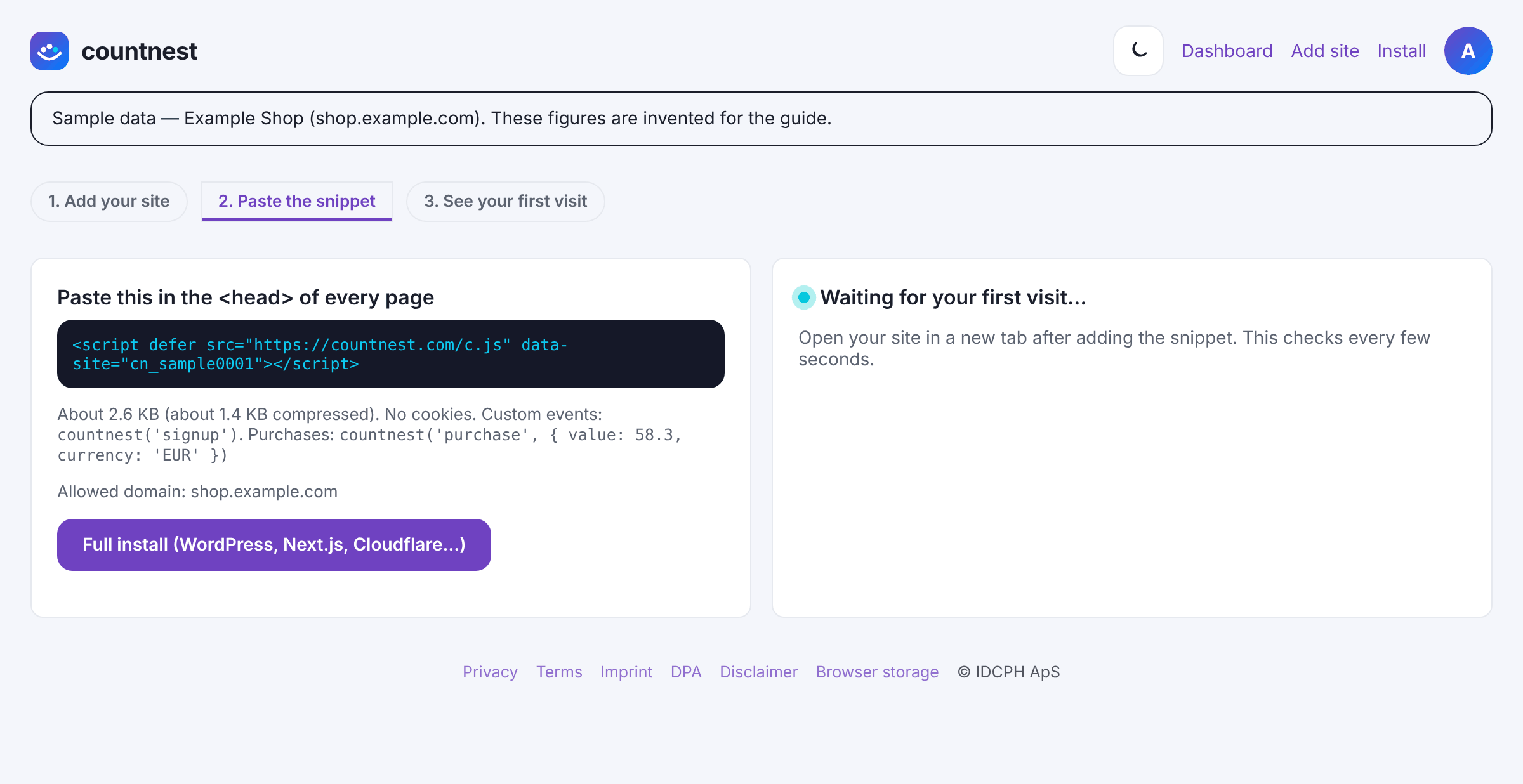
Sample data in the Countnest dashboard (light theme). Step 9: Open the AI traffic tab
The top row shows AI visitors, AI share of all traffic, Engines seen and AI revenue. Below are AI visitors by engine (17 assistants, each its own row), a per-engine trend, and AI landing pages with the engine, visits and bounce rate for each page. Countnest also reads
utm_source=chatgpt.com, which OpenAI says ChatGPT adds to referral links, so tagged ChatGPT clicks count even when the referrer is missing.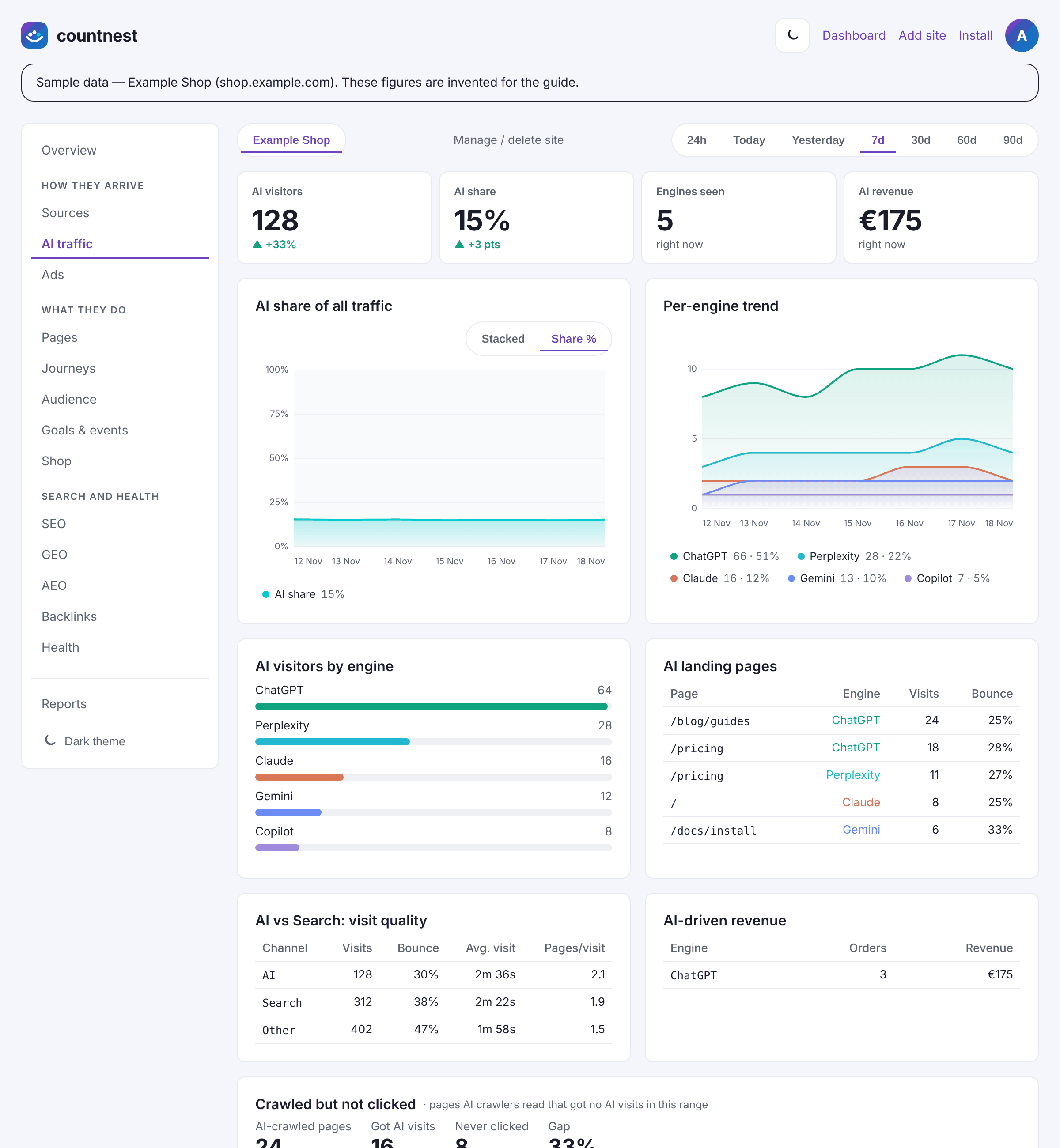
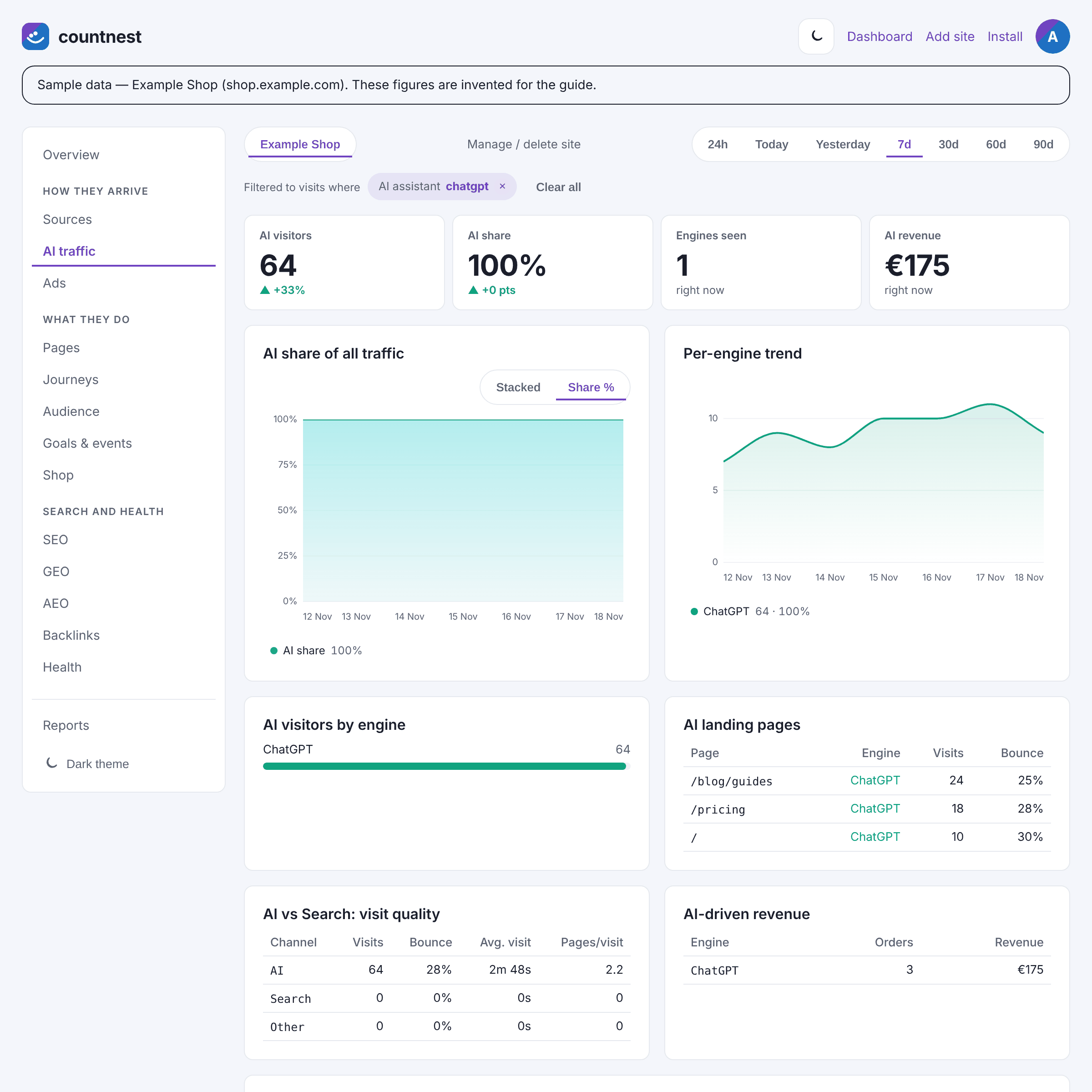
Sample data in the Countnest dashboard (light theme). Step 10: Filter everything to one assistant
Click an engine, for example ChatGPT. The whole dashboard filters to those visits. Open Goals & events to see which goals and sign-ups that assistant produced, or Shop for orders if you run WooCommerce.
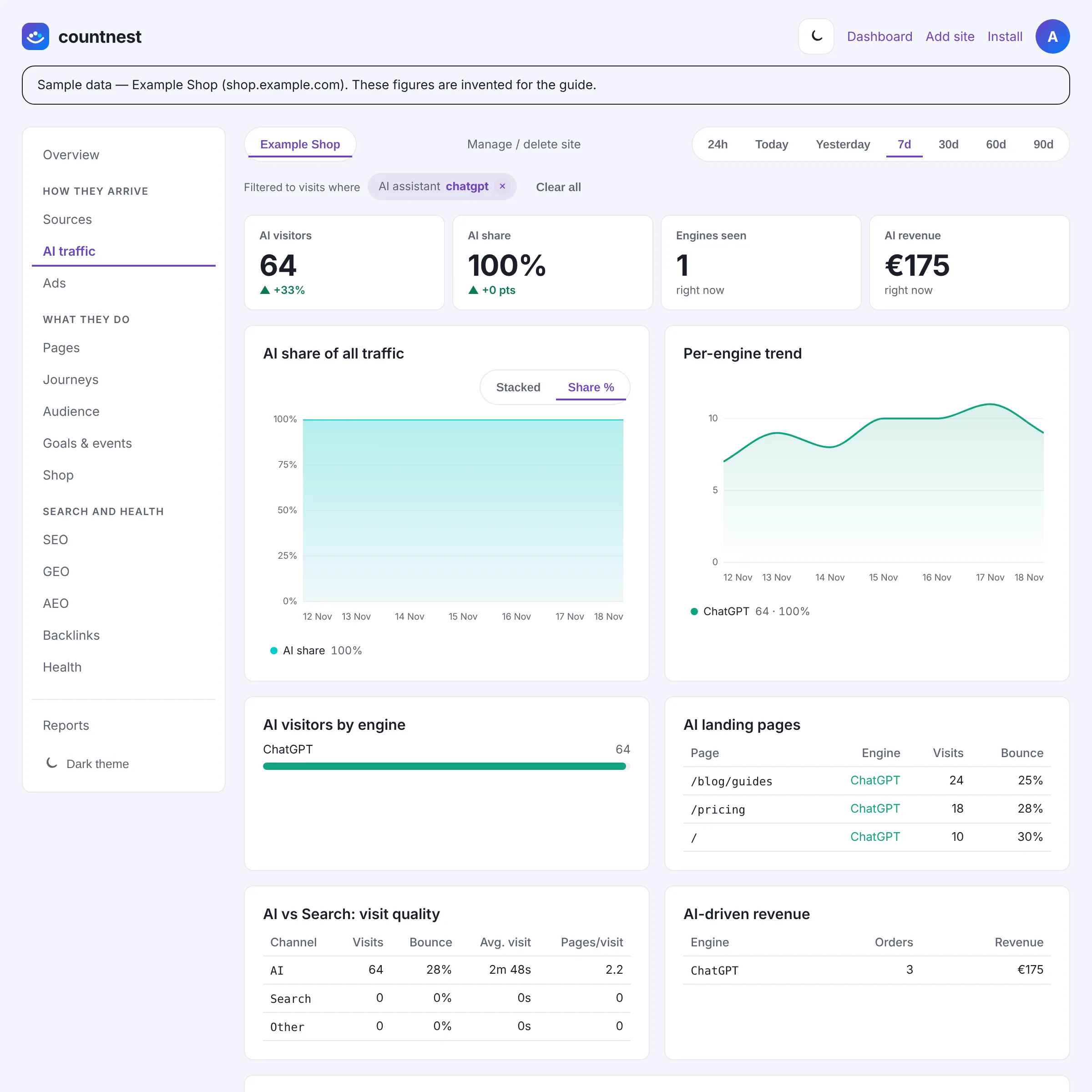
Sample data in the Countnest dashboard (light theme). Step 11: Compare AI visits with search visits
Back on the AI traffic tab, AI vs Search: visit quality compares visits, bounce, average visit length and pages per visit for AI, search and all other traffic. Use it to judge whether AI visitors are worth more effort than the numbers alone suggest.
Sample data in the Countnest dashboard (light theme).


What neither tool can see
- Visits without a referrer or tag. Links opened from some desktop and mobile apps arrive with no source and are counted as Direct, in GA4 and in Countnest.
- Google AI Overviews and AI Mode. Google counts these clicks as Organic Search, and says its AI Assistant channel excludes them. Search Console's generative AI report is the place to look; see How to measure Google AI Overviews traffic.
- The prompt. Assistants don't send the question the person asked.
Keep the pattern up to date
Google's own help page says to update your regex when the list of assistants changes. Google's example pattern is deliberately broad: parts such as .*gpt.* also match unrelated sources, for example gptzero.me. Test any pattern against your real source list before you rely on it. Countnest keeps its list of 17 assistants up to date for you; the hostnames are listed in AI referral traffic in GA4: the sources assistants send.
Questions and answers
Doesn't GA4 already have an AI channel?
Yes. GA4's default channel group has an AI Assistant channel for sources "like ChatGPT, Gemini, Deepseek, Copilot, or Grok", based on a list Google maintains. A custom channel lets you choose exactly which assistants count and see them in one row next to your other channels.
Why must the AI channel be above Referral?
Google puts each visit into the first channel whose rules it matches, in the order listed. Assistant visits arrive as referrals, so a channel placed below Referral never receives them.
Will the new channel change my past reports?
Google says custom channel groups can be applied to reports retroactively, so you can compare earlier months. Audiences built on a channel group change only going forward.
How many custom channel groups can I create?
A standard GA4 property allows 2 custom channel groups next to the default one, with up to 50 channels in each. GA4 360 properties allow 5.
Does Countnest need a channel group too?
No. Countnest recognises 17 assistants from the referrer and from tags such as utm_source=chatgpt.com, and shows each one on its own row without any setup.
30-day free trial, no card required. Then from $14 a month. Cancel anytime.
Start free for 30 daysSources
- Google Analytics Help: Custom channel groups (AI assistants example, limits, order)
- Google Analytics Help: Default channel group (AI Assistant and Organic Search definitions)
- OpenAI Help Center: Publishers and developers FAQ (utm_source=chatgpt.com; Web Archive copy of 4 October 2026 read, the live page blocks automated reading)